operationsmanager
Operations Manager and 'external' services pt1 (the weather management pack)
This post will be the first in a series of posts covering how you can use System Center Operations Manager (SCOM) With external systems. This is a ‘off work’ Project for me where i try to use several external systems which in some whay communicate or can relate to a workflow running in SCOM. While writing this, we are on the edge where SCOM 2016 will release shortly, but i will be using 2012 R2 in this series. Now for this first post, i will start to create a maangement pack monitoring the weather conditions for a few locations i chose. I will use yr.no – a service provided by Norwegian Meteorological Institute and NRK.YR.no has a XML API and thats readable by Powershell and then also SCOM. I remembered Trond Hindenes made a MP for this years ago and i was Lucky to find his blog post about it as well – that made Things alot easier. Thank you. Before we start I would also like to say, if you want do do MP Authoring With Visual studio and Authoring Extensions i suggest you check out Kevin Holmans VSAE fragments. They make a huge difference when trying to understand and create discoveries, monitors etc.- I did not use them when i first started creating this MP
Create the classes and ‘application’
Trond made this easy and i used his model as a spring Board and createt to classes and a relationship. One class will define the “Weather server” the server which is running Our Application. Nothing fancy at all. The Application is a registry key, a string property and a CSV file. I have Limited experience in MP Authoring, but i have created some small MP’s before, using VSAE, Silect MP Author etc. This example will be carried out using VSAE.
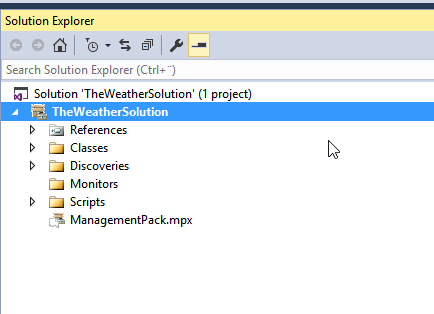
This Picture shows how i have organized my management pack project
 As Trond I used registry to define where the Application is installed. Under HKLM\Software\TheWeatherSolution i have a New key called WeatherDB and further a string value, “WeatherDBConfigPath”. The string is a path to where i have created a CSV-file which has the location name and the xml-url from yr.no. Simple comma separated file With headers. Hemsedal is still present as it is the top skiing resort in Norway, especially if youre in to off piste skiing like me.
LocationName,YRnoURL
Hemsedal,http://www.yr.no/place/Norge/Buskerud/Hemsedal/Hemsedal_Skisenter/forecast.xml
Oslo,http://www.yr.no/place/Norway/Oslo/Oslo/Oslo/forecast.xml
using a csv is a chance from Tronds MP. So if you follow both examples trying to create Your own solution, make sure you notice this so you don’t end up scratching Your head without having to:)
As Trond I used registry to define where the Application is installed. Under HKLM\Software\TheWeatherSolution i have a New key called WeatherDB and further a string value, “WeatherDBConfigPath”. The string is a path to where i have created a CSV-file which has the location name and the xml-url from yr.no. Simple comma separated file With headers. Hemsedal is still present as it is the top skiing resort in Norway, especially if youre in to off piste skiing like me.
LocationName,YRnoURL
Hemsedal,http://www.yr.no/place/Norge/Buskerud/Hemsedal/Hemsedal_Skisenter/forecast.xml
Oslo,http://www.yr.no/place/Norway/Oslo/Oslo/Oslo/forecast.xml
using a csv is a chance from Tronds MP. So if you follow both examples trying to create Your own solution, make sure you notice this so you don’t end up scratching Your head without having to:)
Class1, WeatherDB
I created the first class which is based Windows Local Application. If you want to create this exactly as i have, you willl have to change the base class which default is LocalApplicationComponent. WeatherDB has an extra property called ConfigPath. This property string will have the path to where i placed my CSV file
Code from vsae:
ManagementPackFragment SchemaVersion=“2.0” xmlns:xsd=“http://www.w3.org/2001/XMLSchema”>
    <!-- In this section, modify the attributes based on your needs. Ensure the
         Base attribute matches the application you are modeling.
         More information can be found in the Management Pack Development Kit:
         http://msdn.microsoft.com/en-us/library/ee533867.aspx -->
    <ClassType ID="TheWeatherSolution.WeatherDB" Base="Windows!Microsoft.Windows.LocalApplication" Accessibility="Internal" Abstract="false" Hosted="true" Singleton="false">

      <!-- Inside this section, you can add and remove properties as needed.
           More information can be found in the Management Pack Development Kit:
           http://msdn.microsoft.com/en-us/library/ee533714.aspx -->

      <Property ID="ConfigPath" Key="false" Type="string" />

    </ClassType>

  </ClassTypes>
</EntityTypes>
<!-- This is the string users of the Operations Console and Web Console will see.
Descriptions are also helpful when the user is doing a search in the Console. -->
<DisplayString ElementID="TheWeatherSolution.WeatherDB">
<Name>Weather server Class</Name>
<Description>Computers with weather location database</Description>
</DisplayString>
<!-- Uncomment the below section if you need to add a user friendly string for each property. -->
<DisplayString ElementID="TheWeatherSolution.WeatherDB" SubElementID="ConfigPath">
<Name>Configuration Path</Name>
<Description>The path to where configuration files are stored</Description>
</DisplayString>
</DisplayStrings>
</LanguagePack>Class2, Weather Locations
Weather locations is a class based on LocalApplicationComponent and has a relationship to my WeatherDB class. Weather locations will be defined in the csv file created earlier. It has two Properties, LocationName and LocationURL + the inherited Properties from it’s base class and relationship. LoactionName is the key property for this class.
Here is the full fragment from VSAE
    <!-- In this section, modify the attributes based on your needs. Ensure the
         Base attribute matches the application you are modeling.
         More information can be found in the Management Pack Development Kit:
         http://msdn.microsoft.com/en-us/library/ee533867.aspx -->
    <ClassType ID="TheWeatherSolution.WeatherLocation" Base="Windows!Microsoft.Windows.ApplicationComponent" Accessibility="Internal" Abstract="false" Hosted="true" Singleton="false">

      <!-- Inside this section, you can add and remove properties as needed.
           More information can be found in the Management Pack Development Kit:
           http://msdn.microsoft.com/en-us/library/ee533714.aspx -->

      <Property ID="LocationName" Key="true" Type="string" />
      <Property ID="LocationURL" Key="false" Type="string" />

    </ClassType>

  </ClassTypes>
  <RelationshipTypes>

    <RelationshipType

      ID="TheWeatherSolution.WeatherLocation.Realtionship"

      Base="System!System.Hosting"

      Accessibility="Internal"

      Abstract="false">

      <Source ID="Source" Type="TheWeatherSolution.WeatherDB" />

      <Target ID="Target" Type="TheWeatherSolution.WeatherLocation" />

    </RelationshipType>

  </RelationshipTypes>
</EntityTypes>
<!-- This is the string users of the Operations Console and Web Console will see.
Descriptions are also helpful when the user is doing a search in the Console. -->
<DisplayString ElementID="TheWeatherSolution.WeatherLocation">
<Name>WeatherLocation Class</Name>
<Description></Description>
</DisplayString>
<!-- Uncomment the below section if you need to add a user friendly string for each property. -->
<DisplayString ElementID="TheWeatherSolution.WeatherLocation" SubElementID="LocationName">
<Name>Location Name</Name>
<Description>The name of the weather forcast location.</Description>
</DisplayString>
<DisplayString ElementID="TheWeatherSolution.WeatherLocation" SubElementID="LocationURL">
<Name>Location URL</Name>
<Description>the yr.no URL for this location</Description>
</DisplayString>
</DisplayStrings>
</LanguagePack>
<LanguagePack ID="NOR" IsDefault="false">
<DisplayStrings>
<!-- This is the string users of the Operations Console and Web Console will see.
Descriptions are also helpful when the user is doing a search in the Console. -->
<DisplayString ElementID="TheWeatherSolution.WeatherLocation">
<Name>WeatherLocation Class</Name>
<Description></Description>
</DisplayString>
<!-- Uncomment the below section if you need to add a user friendly string for each property. -->
<DisplayString ElementID="TheWeatherSolution.WeatherLocation" SubElementID="LocationName">
<Name>Location Name</Name>
<Description>The name of the weather forcast location.</Description>
</DisplayString>
<DisplayString ElementID="TheWeatherSolution.WeatherLocation" SubElementID="LocationURL">
<Name>Location URL</Name>
<Description>the yr.no URL for this location</Description>
</DisplayString>
</DisplayStrings>
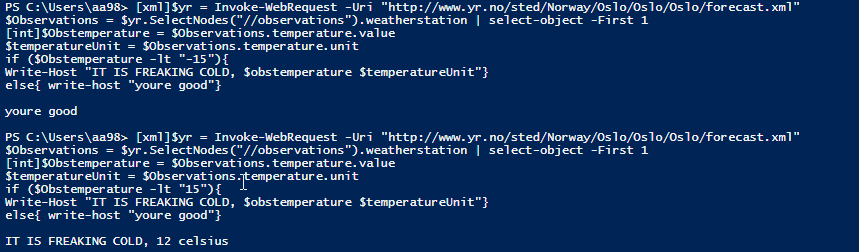
</LanguagePack>In PowerShell it seems to be working. No error handling in this Version thoug
 After adding the SCOM bits to my script, this is how it looks
param([string]$LocationURL,[string]$LocationName)
# Load MomScript API and PropertyBag function
$api = new-object -comObject ‘MOM.ScriptAPI’
$bag = $api.CreatePropertyBag()
After adding the SCOM bits to my script, this is how it looks
param([string]$LocationURL,[string]$LocationName)
# Load MomScript API and PropertyBag function
$api = new-object -comObject ‘MOM.ScriptAPI’
$bag = $api.CreatePropertyBag()
              #Log script event that we are starting task
              $api.LogScriptEvent("TooCold.ps1",6789,0, "Starting toocold.ps1 script")

              [xml]$yr = Invoke-WebRequest -Uri $LocationURL
              #Getting the latest observation
              $Observations = $yr.SelectNodes("//observations").weatherstation | select-object -First 1
              [int]$Obstemperature = $Observations.temperature.value
              $temperatureUnit = $Observations.temperature.unit
              if ($Obstemperature -lt "15"){
              $bag.AddValue("Result","BadCondition")
              #$bag.AddValue("Description", "It is freaking cold observed temperature" + "$obstemperature" + "$temperatureUnit")
              }
              else{
              $bag.addvalue("Result","GoodCondition")
              }
              $bag
To create the monitor i used Kevin Holmans fragments to and changed the Two state PowerShell fragment to my needs. I will try to go more in detail on this at a later stage, but for now this is all you get:) The next part will cover how to use a rule or monitor against these locations and invoke another external system based on the status or alert of each Objects.